June 18, 2026
How to Convert a Markdown File to PDF (Pandoc, VS Code, or Just Your Browser)
Three honest ways to turn a Markdown file into a PDF: Pandoc for power and scripting, a VS Code extension, or a browser tool. Real commands, real pitfalls.

Jerome
Builder of pdfmarkdown.app
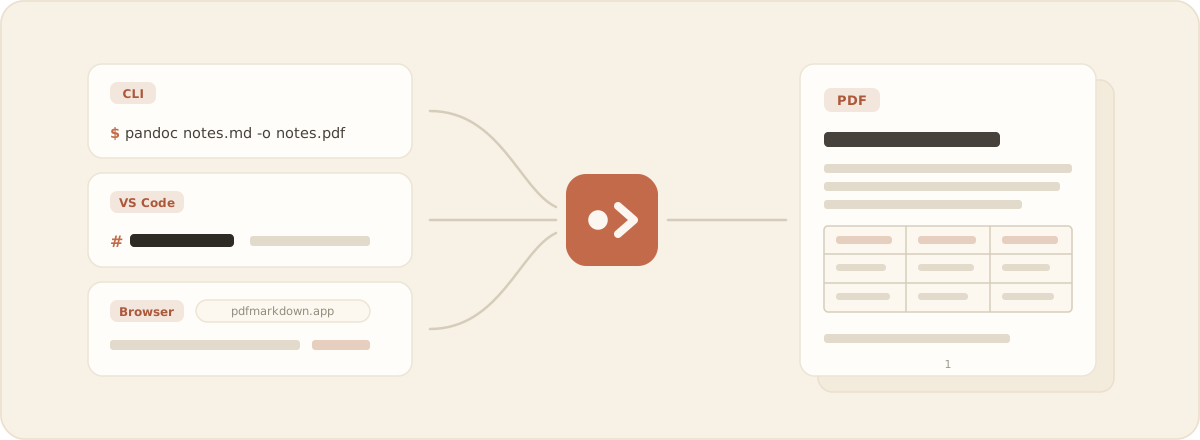
Markdown quietly became the default writing format of the AI era. ChatGPT and Claude answer in it, every README and wiki is written in it, Obsidian and Notion notes live in it. The search numbers say people have noticed: Google searches for “markdown to pdf” are up roughly 10× over the past year, and “md file to pdf” more than 20×.
The funny part is what happens when that Markdown has to leave your ecosystem. Send a raw .md file to a client or a manager and what they see is programmer scribbles, asterisks and pound signs included. For all its ubiquity, Markdown still has no good way to just share a document and trust it will look right on the other person’s screen, especially a phone. So we do what people have always done: flatten it into a PDF, the one format that renders the same everywhere.
And then finding a tool for that turns out to be its own little ordeal, which is why you’re reading this. There are three good ways to do the conversion, and the right one depends on how often you do it and how much you like terminals. I’ll walk through all three, including the parts that bite.
Disclosure: the third option is mine. I build pdfmarkdown.app, which includes a browser-based Markdown to PDF converter. I’ve tried to be fair to the other two; both are genuinely good at what they do, and I use Pandoc myself.
The short version
- You script things and want full control? Pandoc. The most powerful option and the only sane one for converting hundreds of files, at the cost of a LaTeX install measured in gigabytes.
- You live in VS Code and convert occasionally? The Markdown PDF extension. It’s right there in your editor.
- You just want a clean PDF now, with nothing to install? A browser tool. Mine is a free, browser-based Markdown to PDF tool: paste your Markdown and download the PDF when it looks right.
Option 1: Pandoc, the command-line workhorse
Pandoc converts basically any document format into any other. For Markdown to PDF, the basic command is one line:
pandoc notes.md -o notes.pdfIf that worked on the first try on a fresh machine, you got lucky. The usual greeting is:
'pdflatex' not found. Please select a different --pdf-engine or install 'pdflatex'This is the catch nobody mentions up front: Pandoc doesn’t make PDFs by itself. By default it hands the work to LaTeX, which you install separately, and the full distributions (TeX Live on Linux, MacTeX on macOS) run to several gigabytes. If that sounds absurd for converting some notes, TinyTeX is a much smaller distribution built for exactly this situation.
Once it runs, the default look is distinctly academic: the Computer Modern serif of a classic LaTeX paper. It’s not ugly (that’s a respected, very readable typeface), just formal in a way that can feel out of place in a quick note to a non-technical colleague. The tables, for the record, come out clean. A few flags steer it toward something more everyday:
pandoc notes.md -o notes.pdf -V geometry:margin=1in -V fontsize=12pt --toc-V sets layout variables like margins and font size, and --toc adds a table of contents.
The second classic trap is any character beyond plain English. Feed the default engine CJK text (Chinese, Japanese, Korean) or Cyrillic and it doesn’t quietly drop it, it halts outright with Unicode character 中 (U+4E2D) not set up for use with LaTeX. The fix is to switch to the xelatex engine and name a font that contains your glyphs:
pandoc notes.md -o notes.pdf --pdf-engine=xelatex -V CJKmainfont="Songti SC"Two gotchas I hit running exactly this on a fresh TinyTeX. First, you need the CJK package: tlmgr install xecjk. Second, not every font name resolves. macOS’s own PingFang SC would not load for me (xelatex couldn’t find it), while Songti SC worked; on Windows try Microsoft YaHei, on Linux Noto Sans CJK SC. And emoji? In my testing they vanish even after all of this, so don’t count on them.
The upside to all this fiddling is that it’s front-loaded. Once the install and the font flags are sorted, the setup keeps working: the same command converts the same way next week and next month, so you pay the tax once and then mostly forget it’s there. And once configured, Pandoc is unbeatable for repetition. This converts a whole folder:
for f in docs/*.md; do pandoc "$f" -o "${f%.md}.pdf"; doneIf Markdown to PDF is part of a build pipeline or a nightly job, learn Pandoc and don’t look back.
Option 2: VS Code, if you’re already sitting in it
Install the Markdown PDF extension (the popular one is by yzane), open your file, right-click in the editor, and pick “Markdown PDF: Export (pdf)”. That’s the whole workflow, which is exactly the appeal.
Under the hood it prints the page with a headless Chromium browser, which the extension downloads on first use, so expect the first export to take a while. The browser engine is good news for output quality though: you get familiar GitHub-style rendering and code highlighting without configuring anything.
The friction shows up when you want it to look different. Custom styling means writing CSS files and pointing the markdown-pdf.styles setting at them, and controlling where pages break means adding CSS rules like page-break-after to your document. Converting a pile of files is also awkward, since everything is built around the editor’s one-file-at-a-time flow.
For the occasional “send this doc to someone” moment while you’re coding anyway, it’s the path of least resistance.
Option 3: your browser, when you just want the PDF
This is the one I built. pdfmarkdown.app/markdown-to-pdf runs in your browser: paste your Markdown (or drop a .md file, or a .zip of Markdown plus its images) and the pages build live in front of you, exactly as they’ll export. Free, no signup.
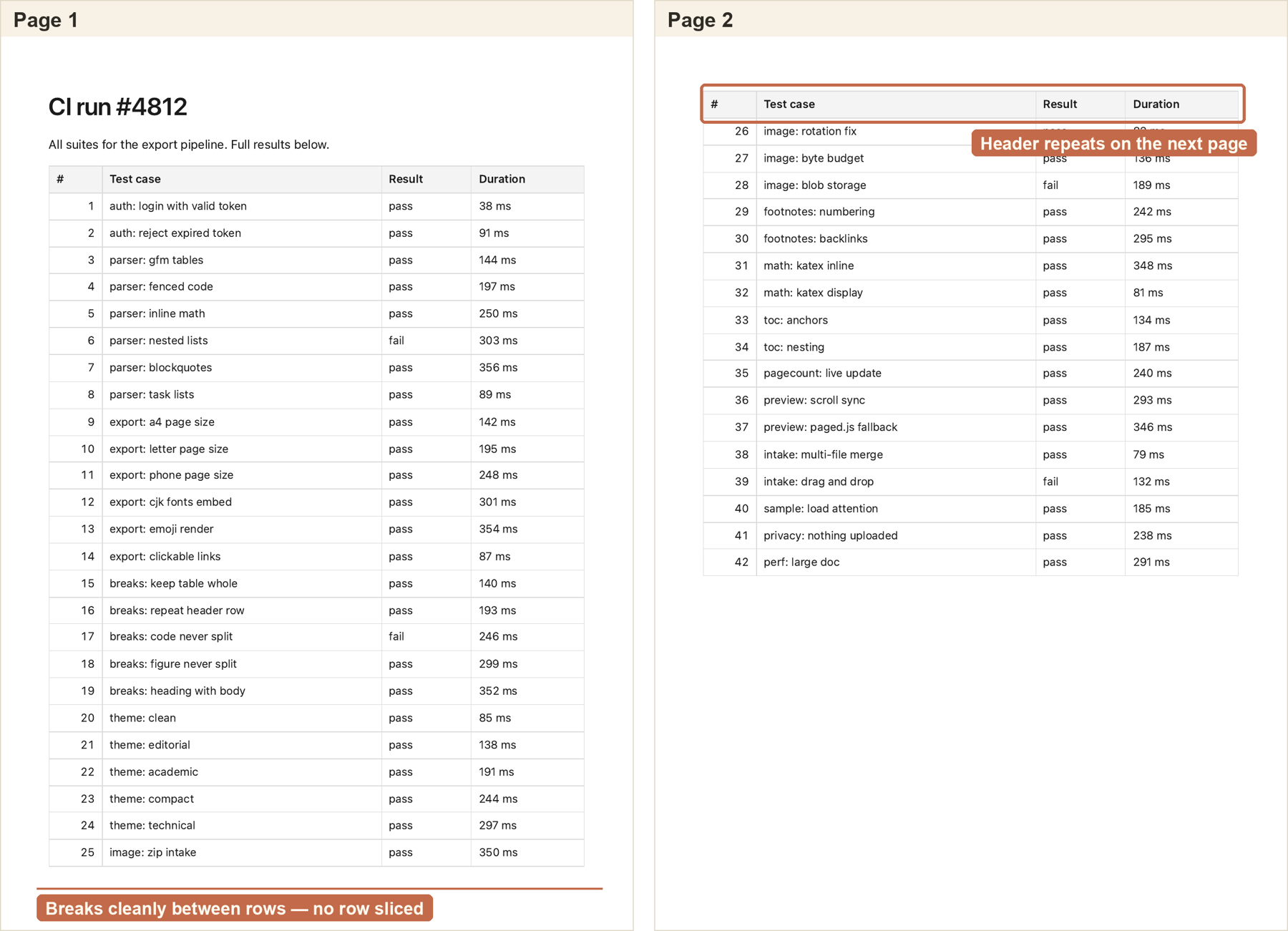
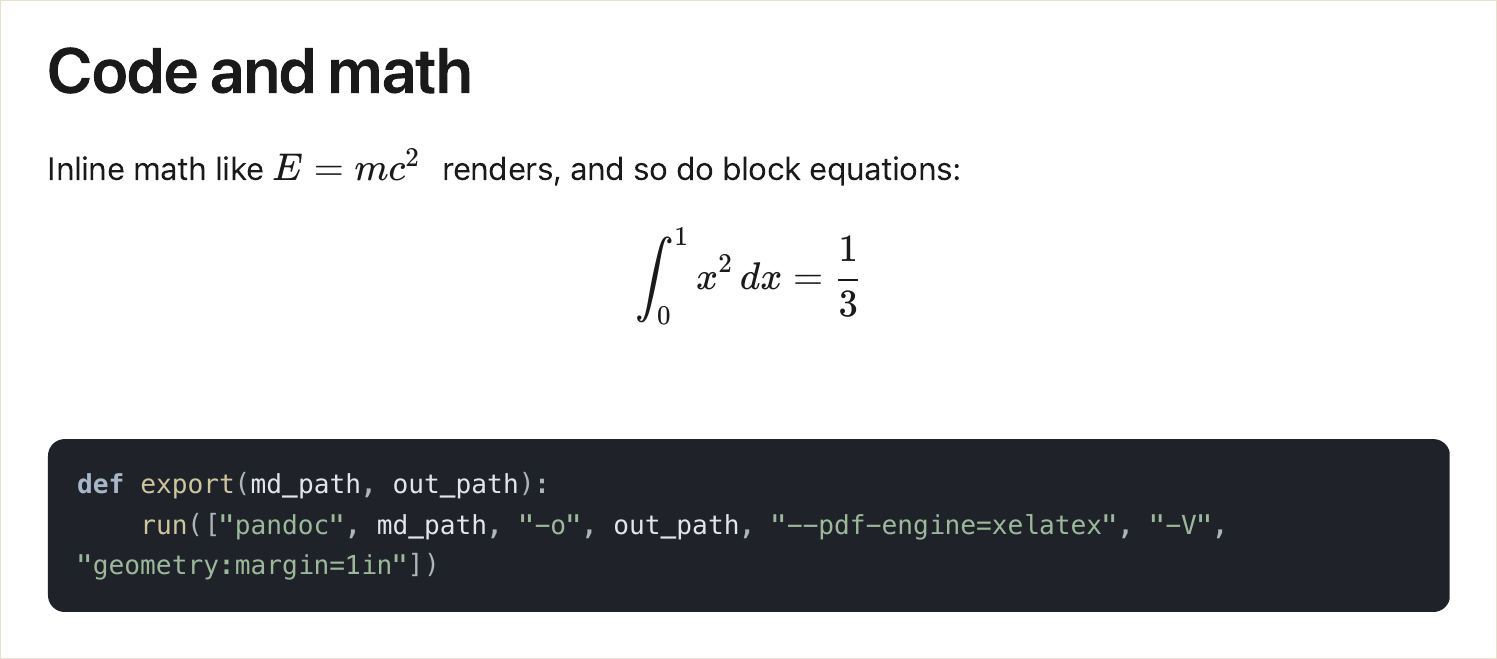
The part I obsessed over is page breaks. The classic failure of quick converters is a table sliced in half across a page edge, or a heading stranded alone at the bottom of page 3 while its section starts on page 4. Here the layout keeps tables, code blocks and figures whole, and because the preview is the actual paginated document, you see any problem before you download rather than after. Long code lines wrap inside the block instead of running off the right edge (a place pandoc’s defaults will spill on you), math renders properly, and there are five themes (Clean, Editorial, Academic, Compact, Technical) to match the document to its reader.
One thing I built specifically for the share-it-on-a-phone case from the top of this post: a Phone page size. Most PDFs are A4 or Letter, which on a phone means tiny pinch-to-zoom text. The Phone size lays the page out tall and narrow so the text comes out big and readable on a phone screen with no zooming, which is often exactly the device the person you’re sending it to is holding.
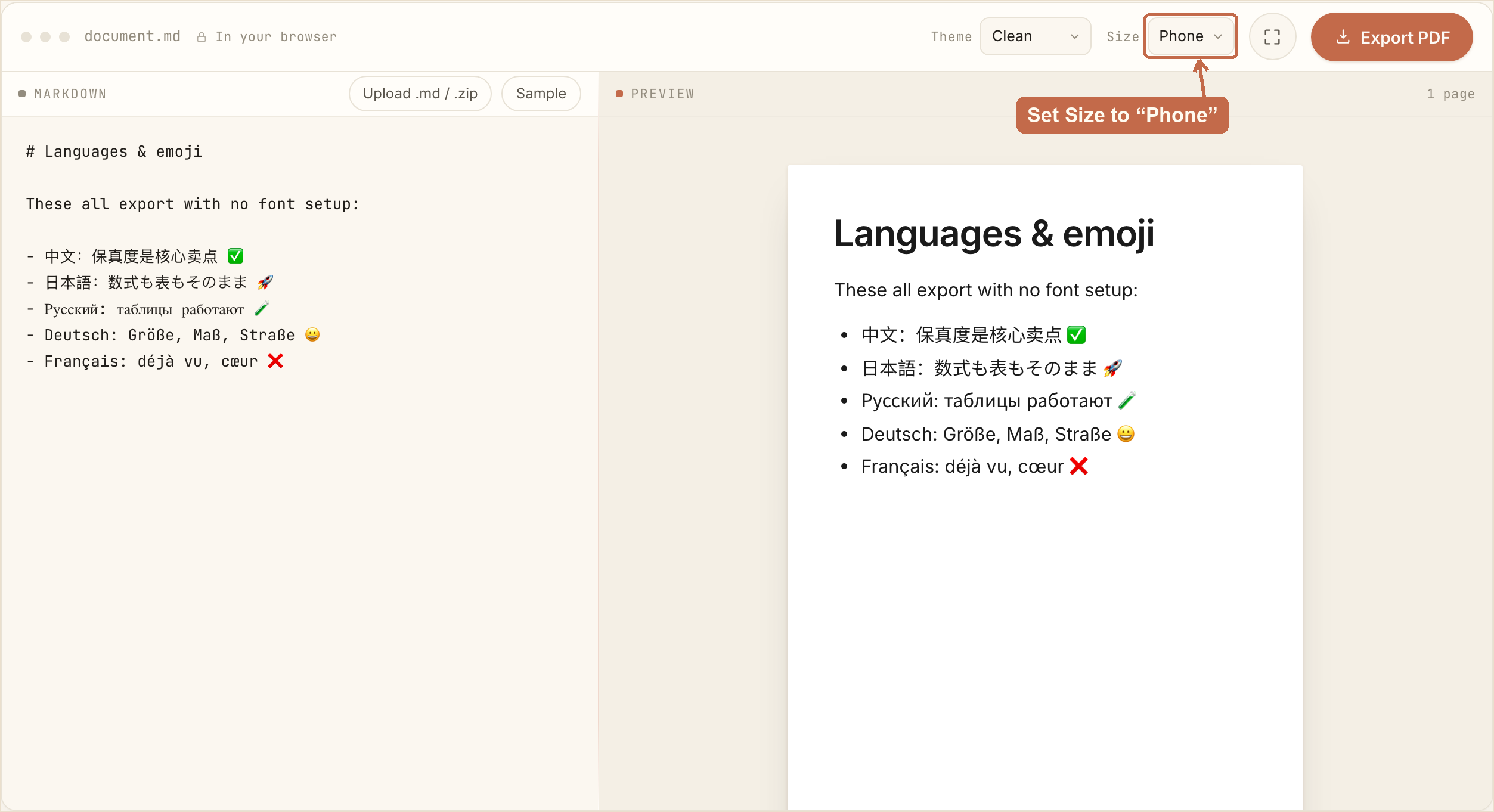
Plenty of other web converters do Markdown to PDF, from the long-running markdowntopdf.com to a steady stream of newer ones. If you go that route, one piece of advice from reading a year’s worth of user threads while researching this space: judge the exported file, not the preview. The most common complaint about web converters, by far, is a beautiful preview that exports to a broken PDF, with bold text gone, links dead, or CJK and emoji missing. That’s exactly why the preview here is the paginated document: what you see is what downloads.
Honest boundaries: it’s a web page, not a pipeline. If you need two hundred files converted on a schedule, that’s Pandoc territory today. Browser-based batch is on my mind, though, and so are other gaps (Mermaid diagrams, say). If there’s something you’d use that it doesn’t do yet, and the real use cases are what move it up the list. And if you’re going the other direction, turning a PDF into Markdown, that’s the main thing pdfmarkdown.app does.
Already writing in Obsidian or Typora?
Then you may not need a converter at all. Both can export the current document to PDF directly (in Obsidian it’s the “Export to PDF” command), and for a quick whole-document export that’s usually enough. The ceiling is control: Obsidian exports the entire note whether you want all of it or not, and in both, fine-tuning the look or the page breaks means digging into custom CSS. When you hit that ceiling, the three routes above give you more room.
Turning a README (or any GitHub doc) into a PDF
This one comes up constantly: a README.md or a docs folder has to go to a client or an auditor who would be confused by a GitHub link. GitHub has no export-to-PDF button, so you have two options.
With Pandoc, tell it the input is GitHub-flavored Markdown so tables and task lists survive:
pandoc README.md -f gfm -o README.pdfIn the browser, paste the raw file into pdfmarkdown.app/markdown-to-pdf. If the README references local images, zip the folder and drop the zip in so the images resolve.
Either way, consider deleting the badge row first (the little build-status shields at the top). Badges are made for repo pages and rarely make sense in a document.
Frequently asked questions
How do I convert a Markdown file to PDF without installing anything? Use a free online converter that runs in your browser. pdfmarkdown.app/markdown-to-pdf needs no signup, and shows you the paginated result live before you download it.
How do I convert a Markdown table to PDF without it breaking?
Tables are where most converters stumble: wide ones get their right edge cut off, or the rows collapse into a mess on export. Pandoc handles them well if you pass -f gfm; in the browser, pdfmarkdown.app/markdown-to-pdf keeps each table whole and won’t slice one across a page edge. Whatever you use, judge the downloaded file, not the on-screen preview.
Why does Pandoc fail with “pdflatex not found”?
Pandoc delegates PDF generation to a LaTeX engine that isn’t installed yet. Install a TeX distribution (TinyTeX if you want small, TeX Live or MacTeX if you want complete), or point --pdf-engine at an engine you already have.
How do I convert a GitHub README to PDF?
GitHub itself can’t do it. Either run pandoc README.md -f gfm -o README.pdf on the command line (the -f gfm flag keeps GitHub-style tables intact), or paste the raw Markdown into a browser converter.
What’s the best way to batch convert many Markdown files to PDF?
Pandoc in a shell loop: for f in *.md; do pandoc "$f" -o "${f%.md}.pdf"; done. Browser tools and editor extensions are built around one document at a time.
I’m Jerome, the builder of pdfmarkdown.app, a free, browser-based PDF↔Markdown tool. Two of the three options above aren’t mine, and I genuinely reach for Pandoc when I’m batch-converting. If I got something wrong, tell me at hey@pdfmarkdown.app.